1
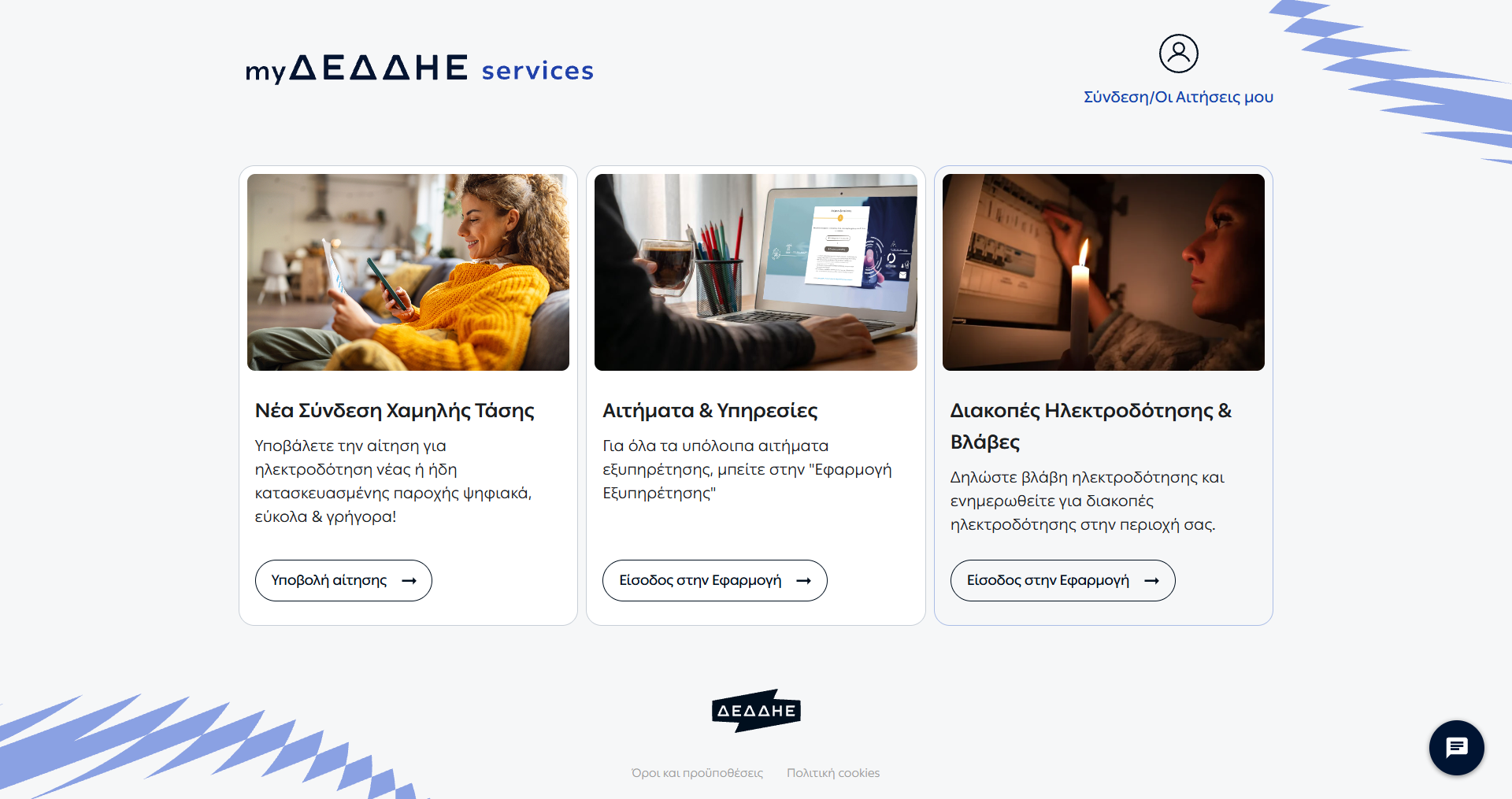
Report a new fault , for the submission of a new electricity supply fault request.

 |
Once logged in, you can select:
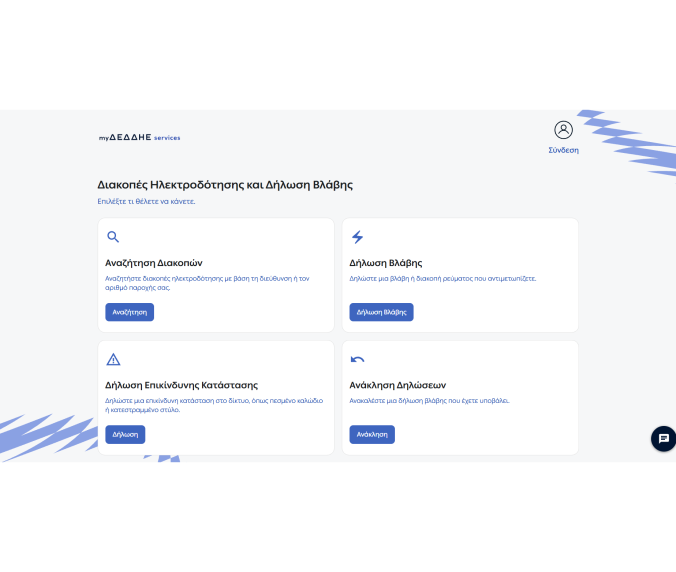
Find information about active faults and scheduled power outages in your area.
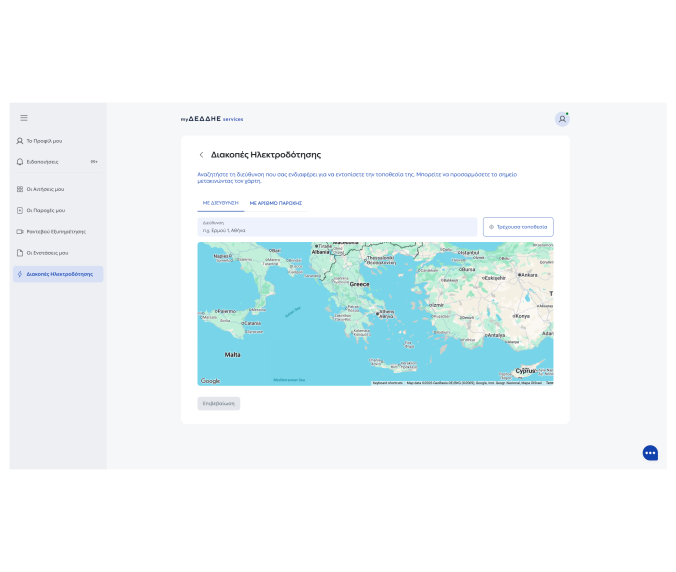
1.1 Search for a Power Outage by Address
No identification is required to search for a power outage by address.
You can locate the point of interest in one of the following ways:
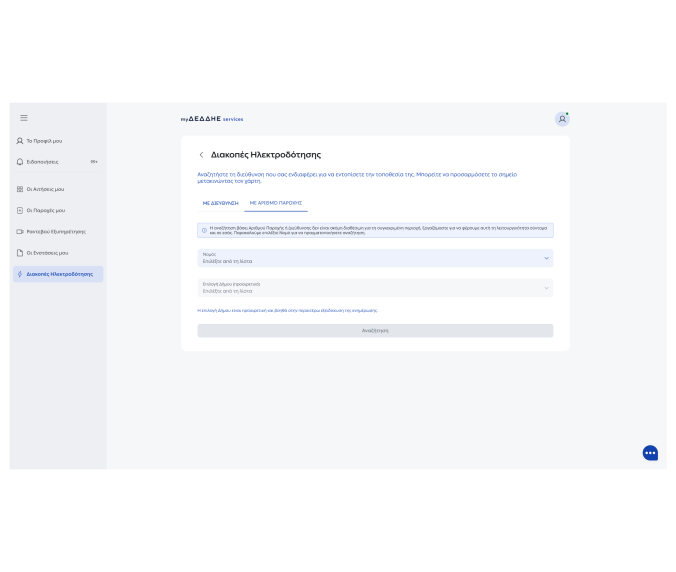
1.2 Search for a Power Outage by Supply Number
To search for a power outage using a Supply Number, you must log in via TaxisNet and be the contracted customer for that supply.
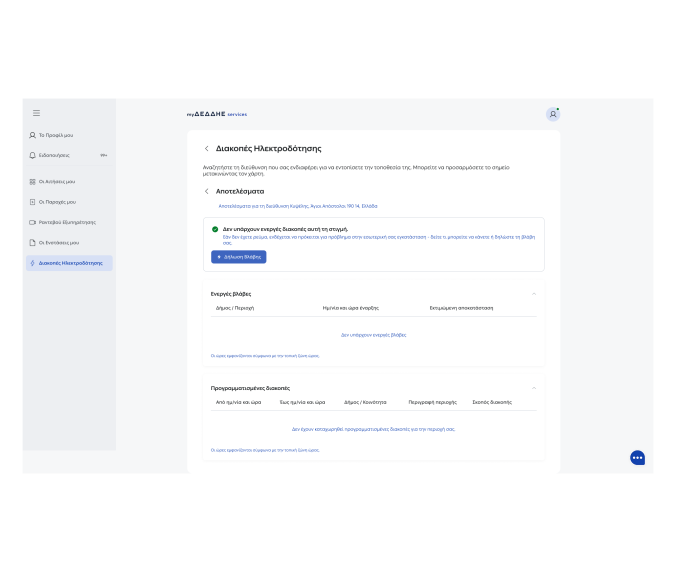
1.3 Active Faults or Scheduled Outages by Address
If your address is affected by an active fault or a scheduled outage, the relevant information is displayed in information tables.
You will also need to provide your contact details. Once the report has been successfully submitted, an Application Reference Number will be displayed.
Important: If there is already an open fault report for the supply, you cannot submit a new report for the same supply.
* We handle your data confidentially and in accordance with the GDPR. Your report is forwarded to the competent technical service for further action.
The Fault Reporting service provides the following options:
Report a new fault , for the submission of a new electricity supply fault request.
Report a dangerous condition on the network, for reporting incidents that may pose a risk and require immediate investigation.
Withdraw a report, for cancelling a fault report that has already been submitted, provided that it no longer requires further action.
Before submitting your report, check whether there is an active fault or scheduled power outage in the area concerned. Depending on how you have logged in, you can submit a fault report in one of the following ways.
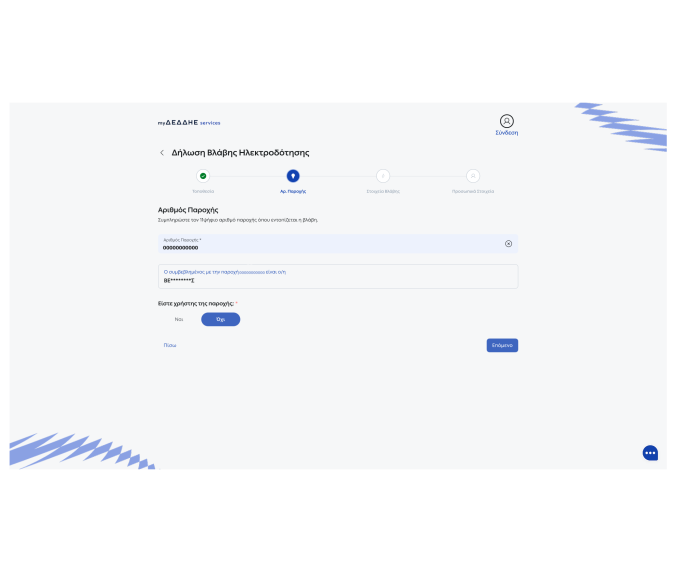
A. If you have logged in to the application via TaxisNet
You can submit a fault report:
Β. If you have not logged in to the application via TaxisNet
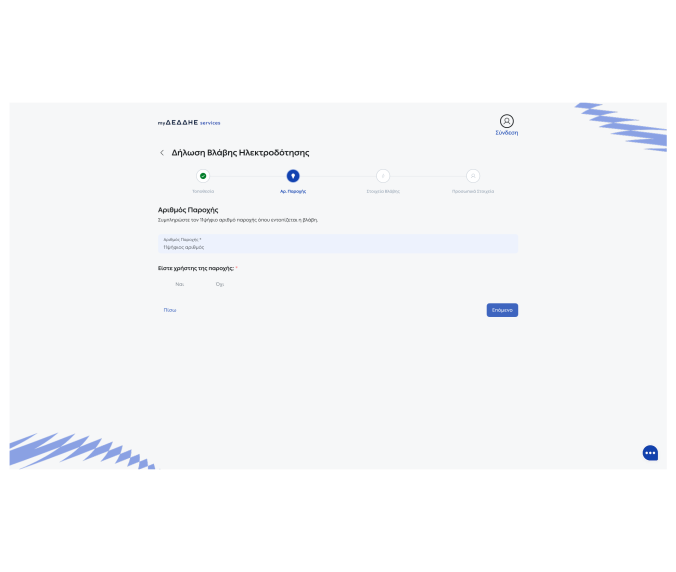
You can search for the area concerned by address and proceed with submitting a fault report by entering the Supply Number.
You can also submit a report on behalf of a third party. During the process, you will be required to state whether you are a user of the specific supply.
You will need to enter your contact details, as the relevant fields will appear blank.
To complete the submission of the report, you must verify your mobile phone number using an OTP code sent by SMS.
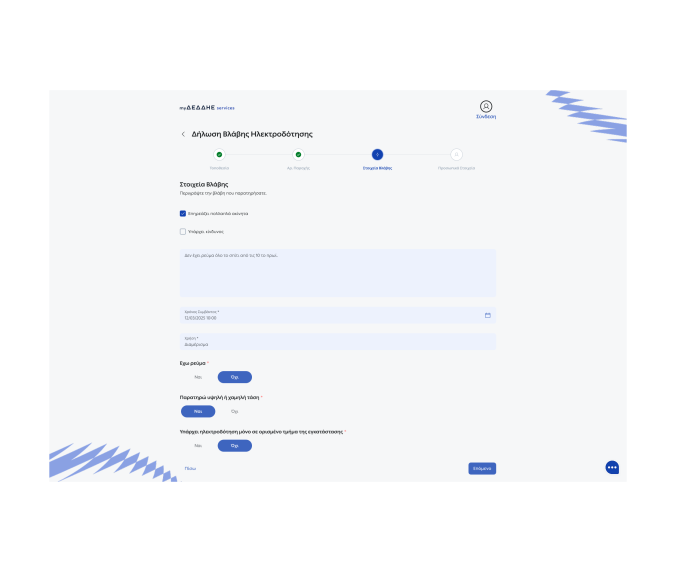
Completing Fault Details
When submitting the fault report, you complete the information required to describe the problem.
You will need to enter:
In addition, you can indicate whether the fault affects multiple properties or whether there is a hazard.
Completing Contact Details
When submitting the fault report, you complete your contact details:
Mobile Phone Verification
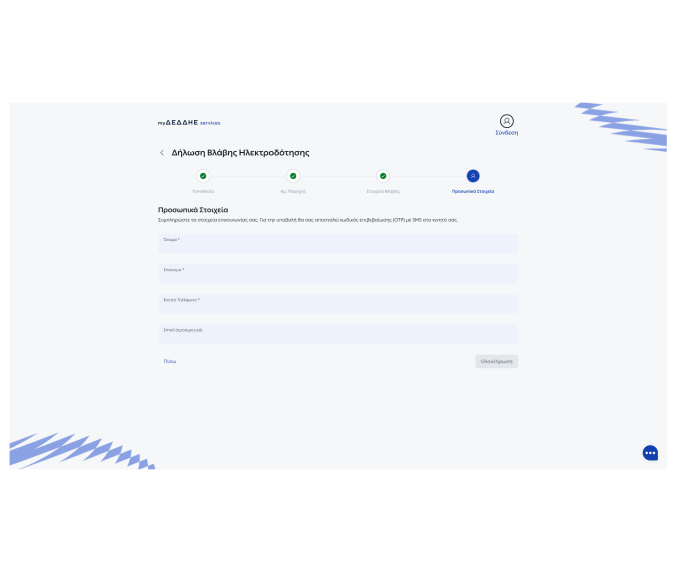
Completing the Report
Once you have completed your contact details, select “Complete” and your report will be successfully registered.
Once registration has been completed, the Application Reference Number is displayed.
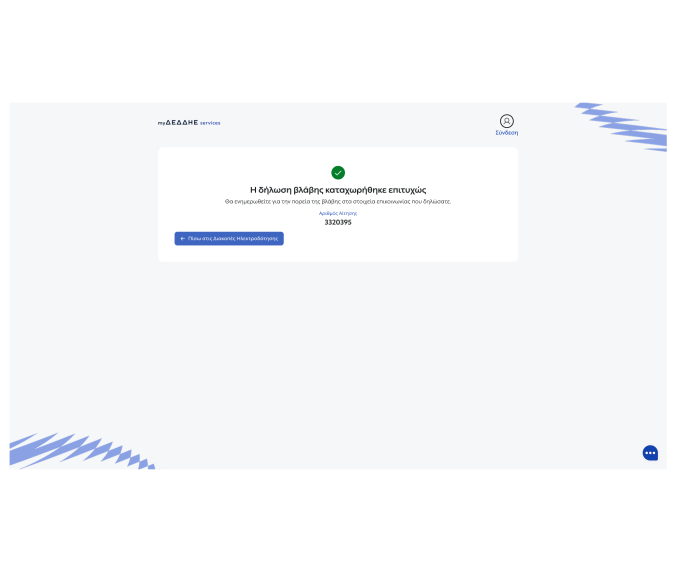
You can submit a report of a dangerous condition on the network.
The process is completed in three successive steps.
1. Specify the Location
Specify the location of the dangerous condition in one of the following ways:
Once the location has been confirmed, select “Next” to proceed to the next step.
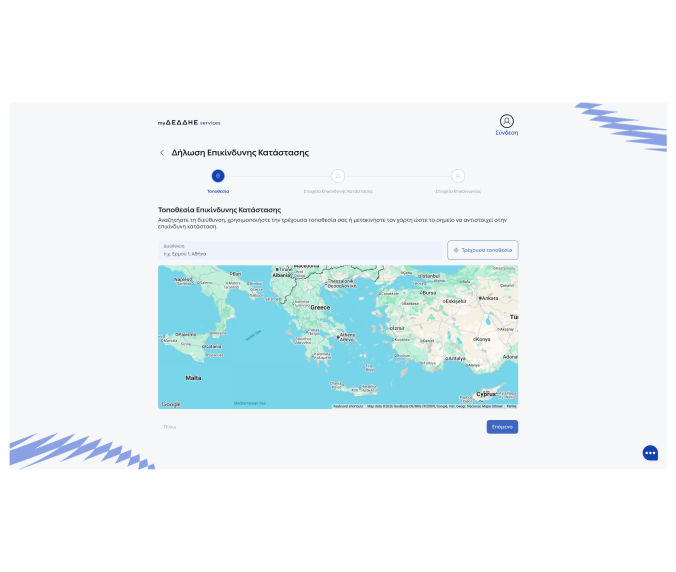
2. Complete the Dangerous Condition Details
Complete the following fields:
3. Completing Contact Details
If you have not logged in via TaxisNet, you must enter and verify your mobile phone number via OTP before the report can be finally submitted.
If you have logged in via TaxisNet, your profile details are displayed pre-filled and can be edited. If no contact details are available in your profile, the relevant fields are displayed blank and must be completed, and the mobile phone number must be verified via OTP.
Following successful verification, select “Submit Report” to complete the submission.
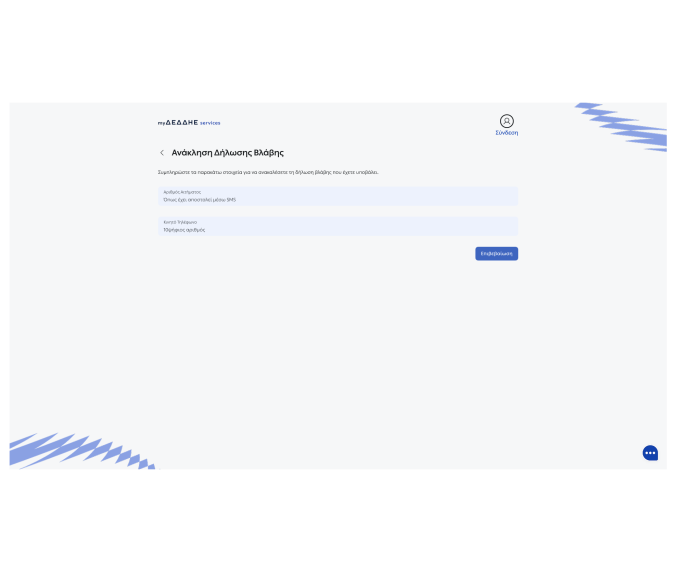
The service allows you to withdraw a fault report that has already been submitted
To withdraw the report, complete the following details:
Following successful verification, select “Confirm” to complete the process.
The Customer Service Call Center is at your disposal in the following ways:
Call free of charge to 800 400 4000 (available 24/7 for fault reporting).
Call 211 190 0500 (local charge).
Call 11500 (the charge depends on the pricing policy of your supplier).
Call from abroad on +30 211 190 0500.