myΔΕΔΔΗΕ services
As part of the digitization of its services and with a focus on better customer support, HEDNO announces the launch of a new digital platform, myDEDDIE services.
What is myDEDDIE services?
myDEDDIEservices is HEDNO’s new digital customer support platform for submitting and managing requests via myΔΕΔΔΗΕ services easily, quickly, and exclusively in digital format.
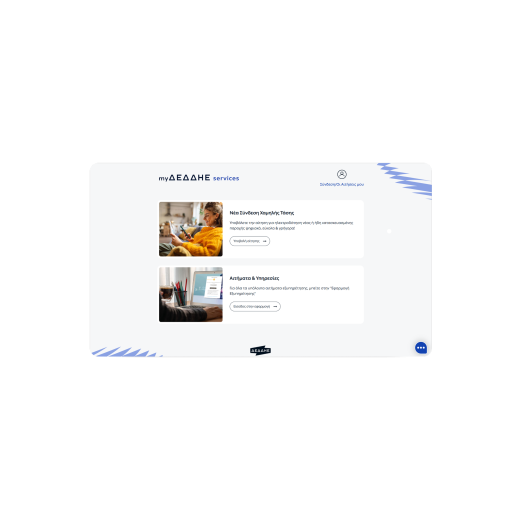
Through myDEDDIE services, you can choose between two main categories:
- New Low-Voltage Connection
To submit an application for electricity service for a new or already constructed connection. - Requests & Services
For all other requests, such as:
New Medium-Voltage Connection, Increase, Decrease, Separation, Consolidation, YDE, Extension, or Permanent Conversion of a Construction Site Connection, etc.
Connection to the platform
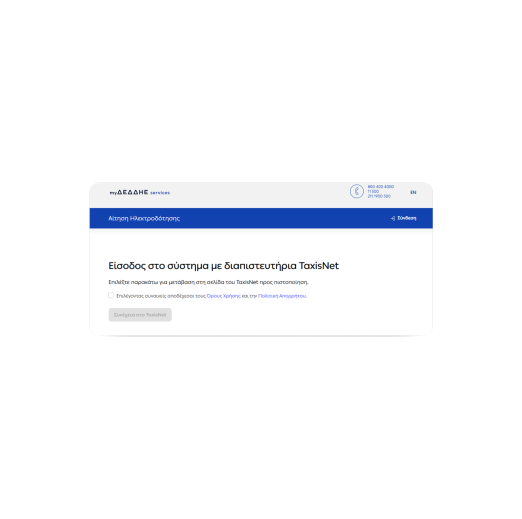
The platform serves natural and legal persons, as well as their representatives, who log in using their TaxisNet credentials and, where required, follow a contact details verification procedure using OTP (mobile phone and email).
Advantages of myDEDDIE services & the New Low Voltage New Request
Quick & easy application form completion using Interconnections for automatic retrieval of data from TEE, IAPR, and GEMI.
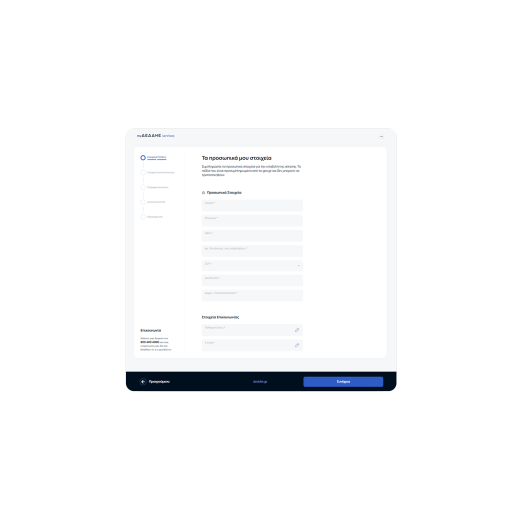
Guidance on the supporting documents required for each customer.
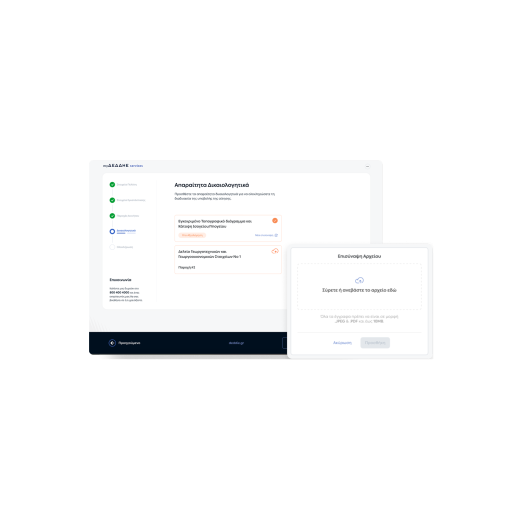
Management and monitoring of the application process, from submission to electrification, combined with notifications for every important development.
Electronic signature of the Network Connection Agreement.
Processing of the application and temporary storage prior to final submission.
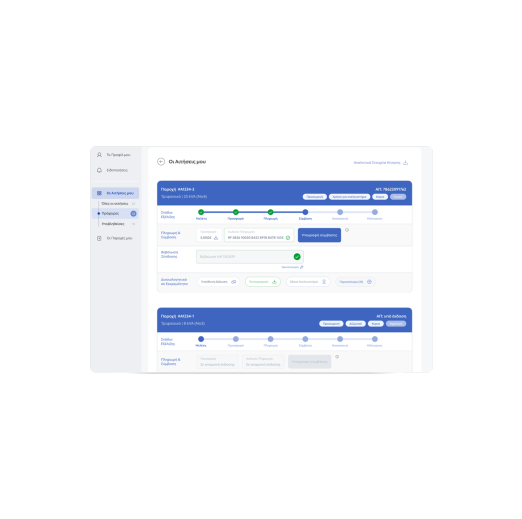
Option to appoint an Application Manager (customer representative) for all stages of the application via Electronic Authorization.
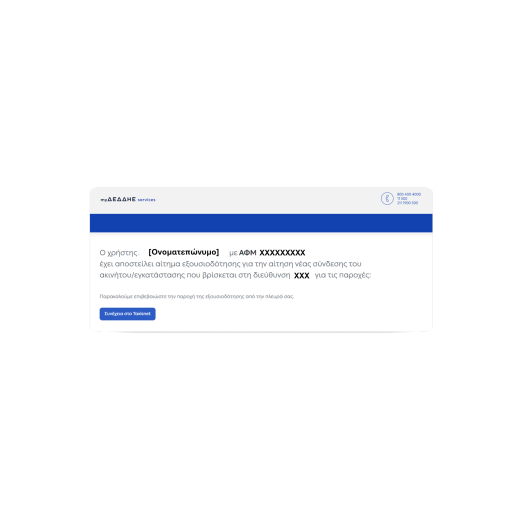
Follow the guides on how to submit your application online and check the status of your application through my HEDNO Services.
Track the Status of a New Low-Voltage Connection Application Through myDEDDIE Services
Below is a summary of the 6 steps involved in applying for a new low voltage connection - click on the image to enlarge
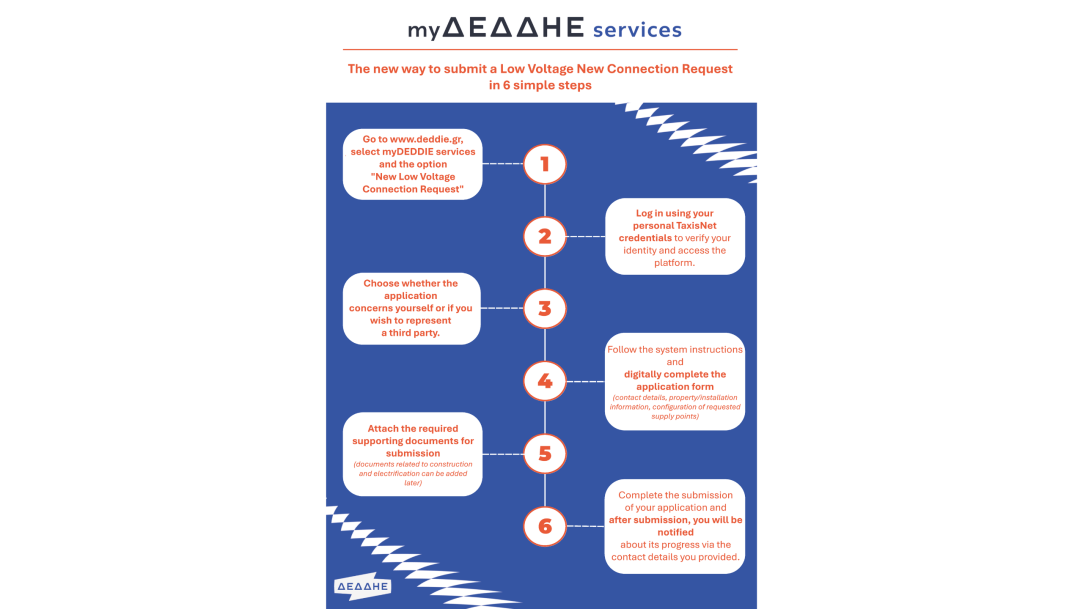 |
Press HERE to enlarge.
For further assistance, click on the icon below and view the guide with important points for submitting your application and the new features!
 |
With customer support at the heart of its services, HEDNO is expanding its digital communication channels and now offers customer support via video call.
Video call support is available to customers who:
- either have an active request,
- or have had a request completed within the last 6 months.
During the video call, customers can receive information on the status of their request, any outstanding issues, and the next steps required.
Simply schedule your appointment through myΔΕΔΔΗΕ services.
How to Schedule a Video Call Appointment
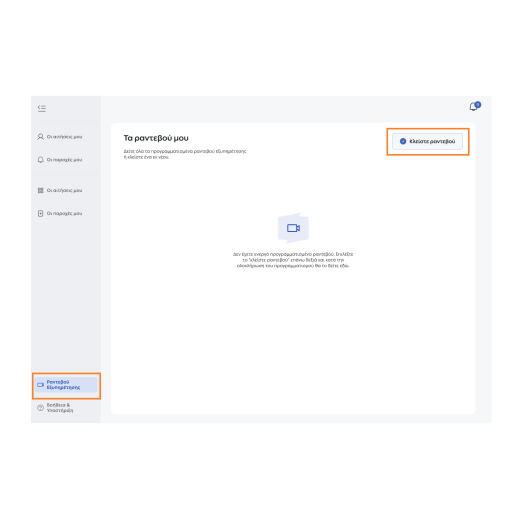
Visit the myΔΕΔΔΗΕ services application, log in using your TaxisNet credentials, select the “Customer Support Appointment” section and click “Book an Appointment”.
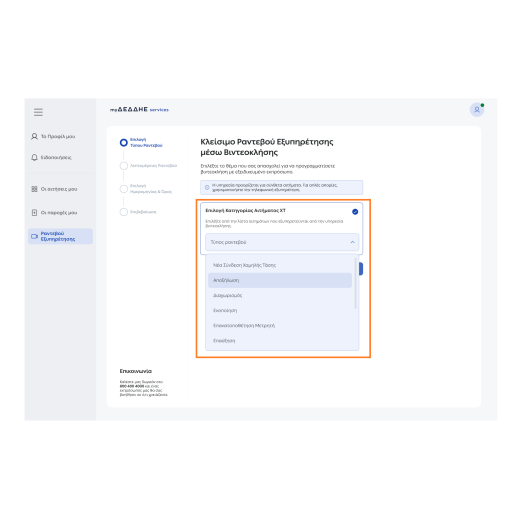
Step 1: Select Appointment Type
Under “Select LV Request Category”, choose the relevant request category from the list.
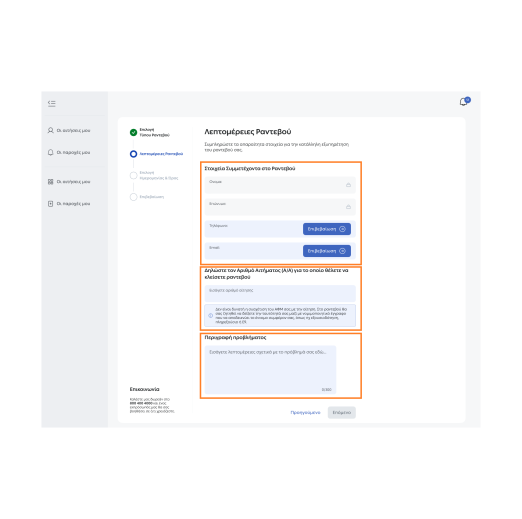
Step 2: Appointment Details
You will need to provide:
- your personal details
- your contact details (which you will be required to verify)
- your application reference number, and
- a short description of your request (under “Problem Description”)
This enables the representative handling your appointment to prepare appropriately in advance.
To receive support on behalf of another person, you must have written authorization and an identification document (identity card, passport), which you will be asked to present during the video call.
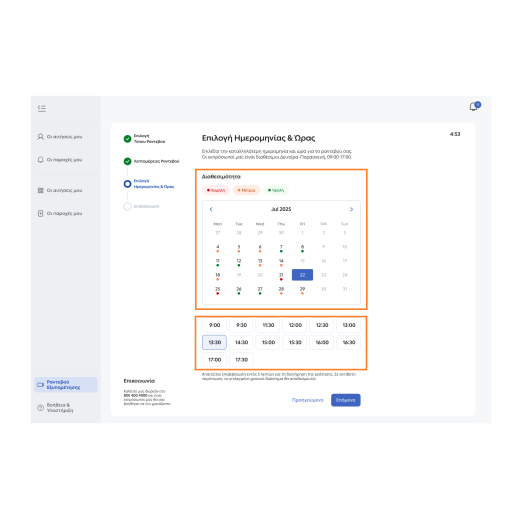
Step 3: Select Date & Time
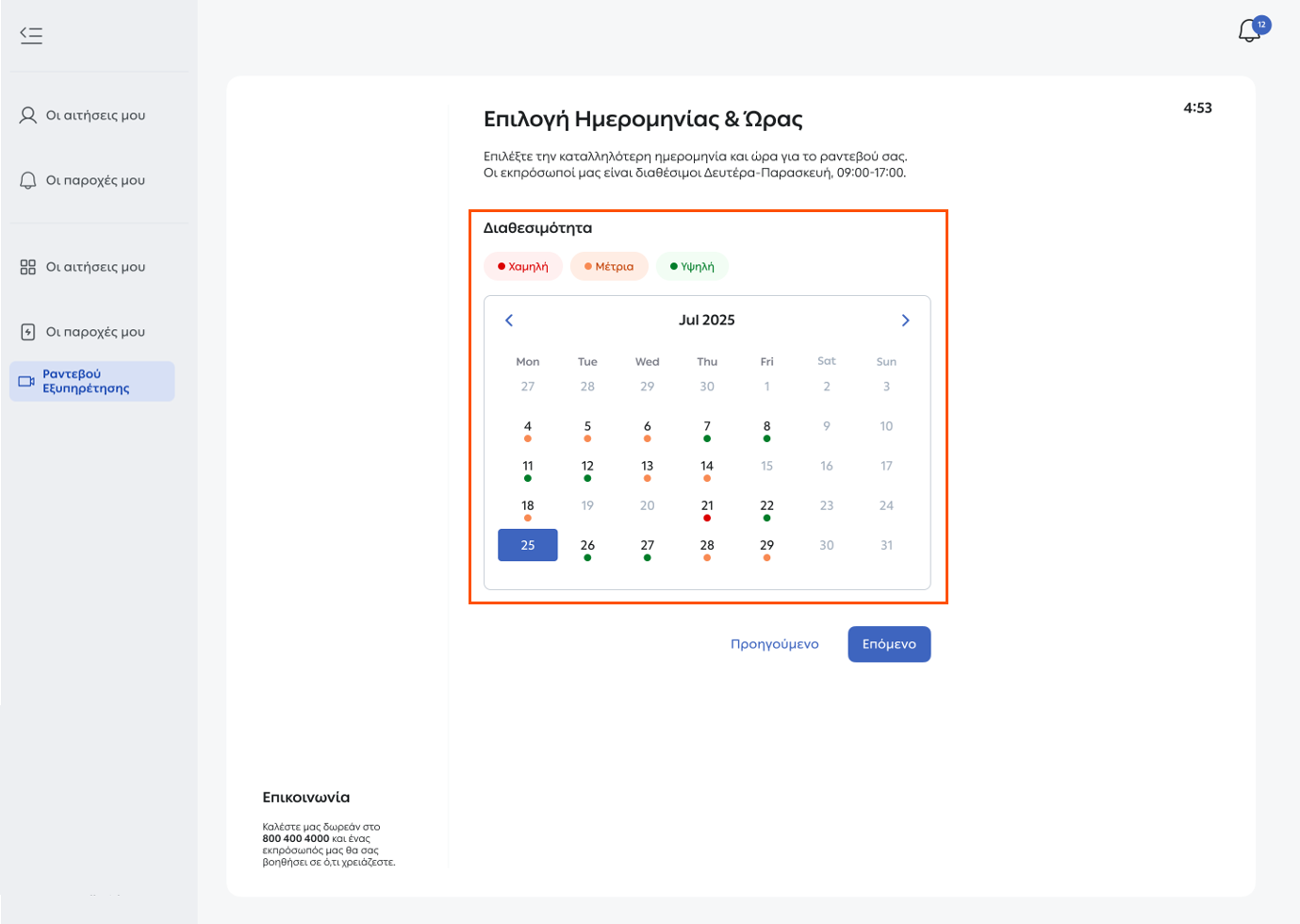
At this step, you can schedule the date and time that best suits you.
- Select your preferred date from the calendar, subject to appointment availability.
Appointments can be booked up to one month in advance. - Select your preferred time.
The duration of all appointments is 30 minutes, regardless of the request category.
The video call service is available Monday to Friday, 09:00–17:00.
Step 4: Confirmation & Successful Booking
Before confirming your appointment, you will have the opportunity to review all the information you have entered.
If you need to make any changes, click “Previous” to return to the relevant step.
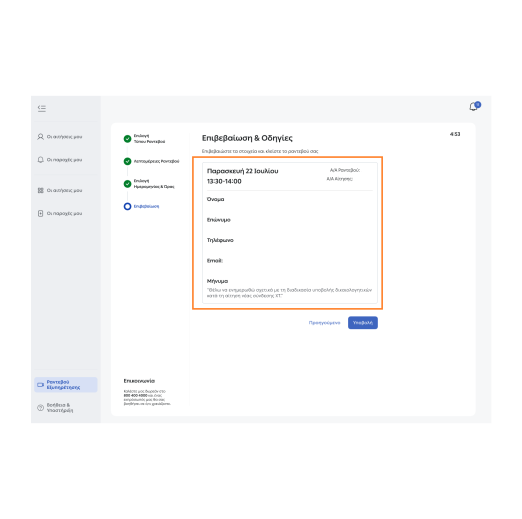
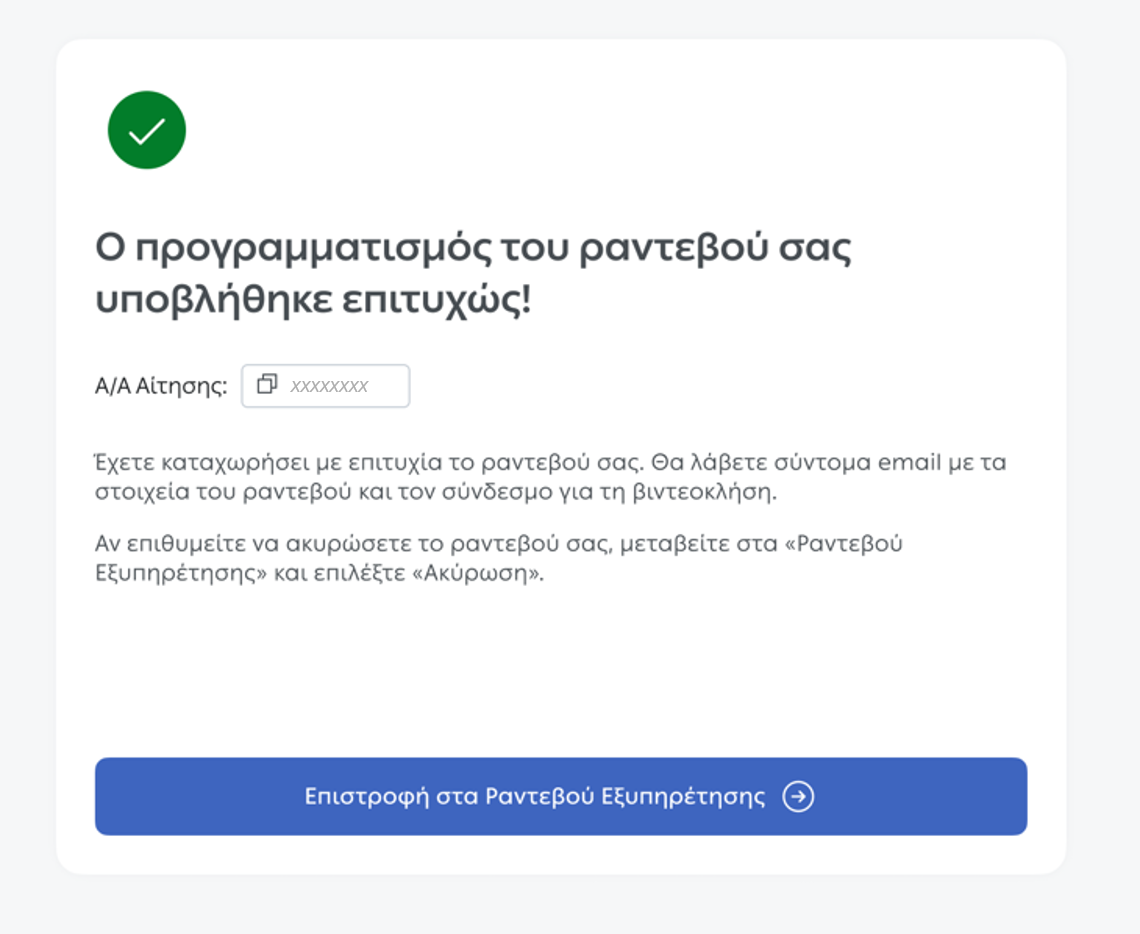
Once you have submitted your booking, you will receive confirmation that your appointment has been successfully scheduled.
 |
Joining Your Video Call
All communications regarding your video call appointment will be sent exclusively by email (not by telephone).
You will receive reminder emails 24 hours before your scheduled appointment and 1 hour before your scheduled appointment.
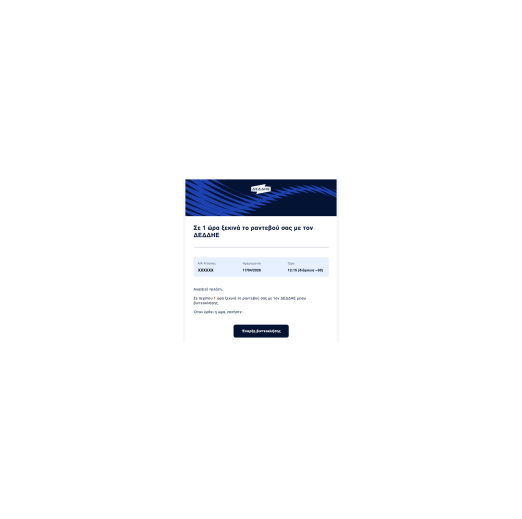
The reminder email sent 1 hour before your scheduled appointment will feature a “Join Video Call” button, which you should use to access the meeting.

The button remains active throughout the scheduled appointment period. However, if you do not join within the first 10 minutes, your appointment will be canceled.
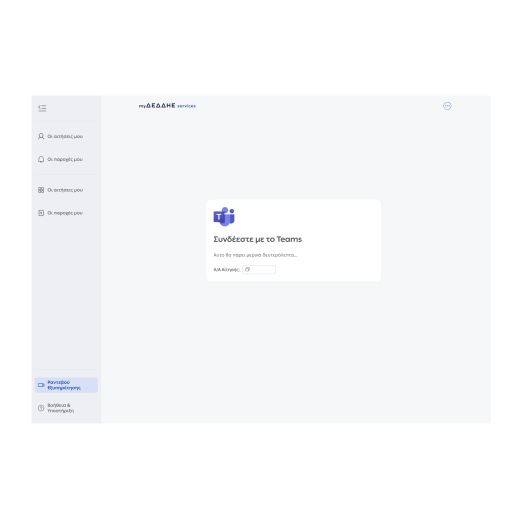
The video call is conducted via Microsoft Teams. You can join either:
- using the Microsoft Teams App (smartphone & tablet)
- through your web browser, without the need to create a Microsoft Teams account.
What You Need for Your Video Call
- A stable internet connection
- A device (desktop computer, laptop, tablet or smartphone)
- A camera (built-in or external, e.g. a webcam)
- A microphone
Book your appointment here.
Frequently Asked Questions
Yes. You may attend a video call appointment on behalf of another person, provided that you have a written authorization.
During the video call, you will be required to present both the written authorization and a valid identification document (identity card or passport).
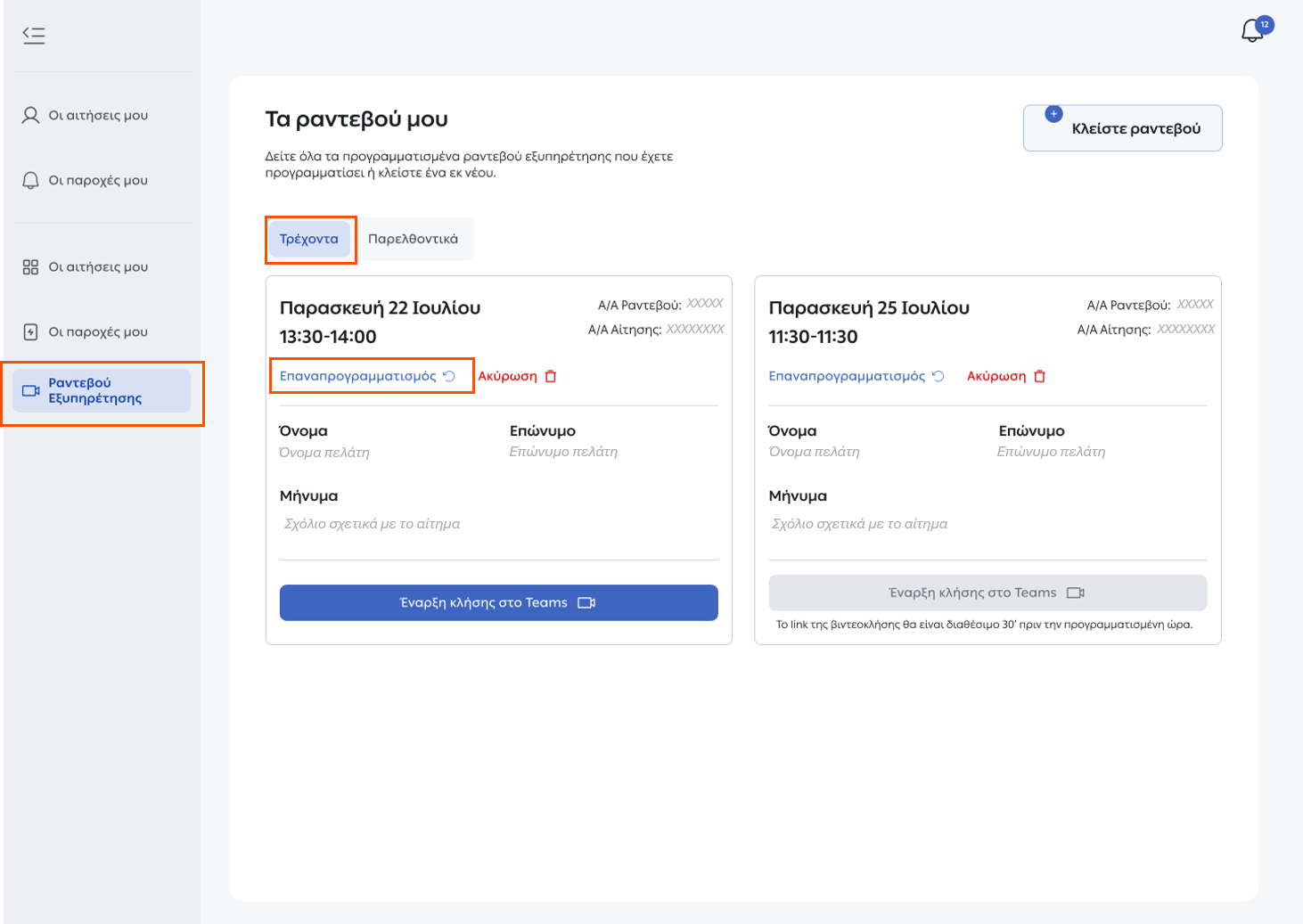
To change the date and/or time of an existing appointment without canceling it, follow these steps:
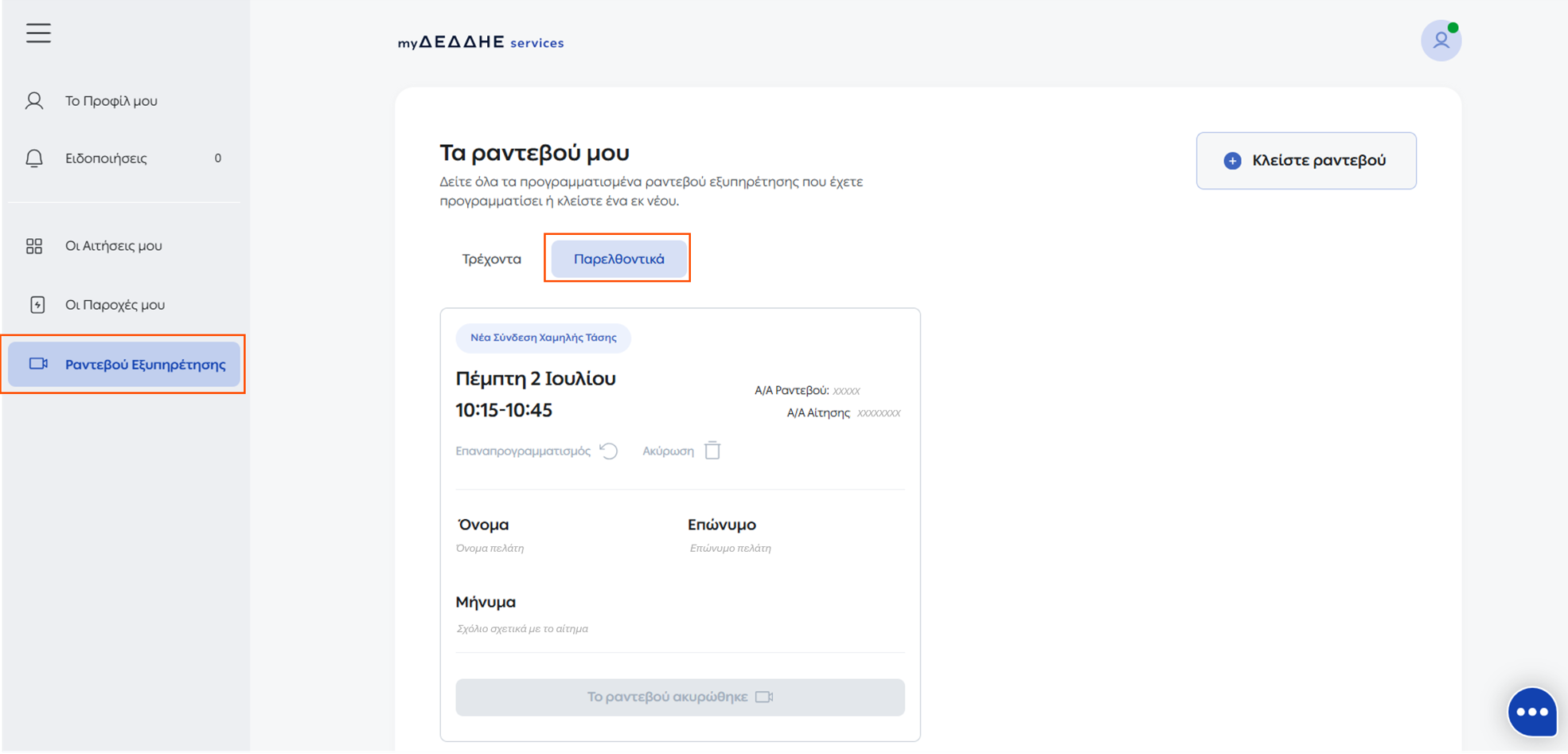
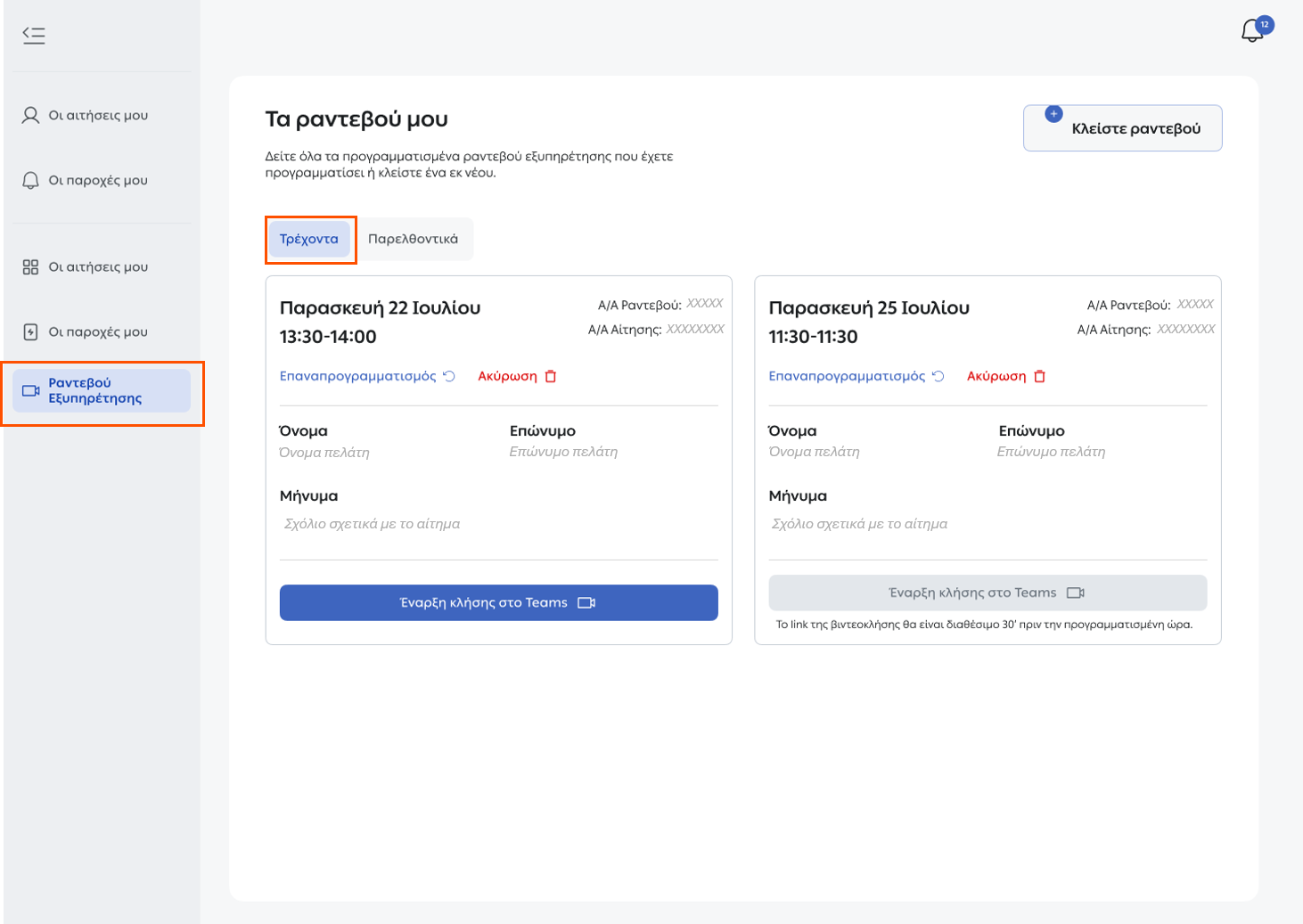
- Go to “My Appointments” and select the “Current” tab.
- Click “Reschedule” on the appointment you wish to change.
 |
- You will be taken to the calendar, where you can select a new date and time, subject to availability.
 |
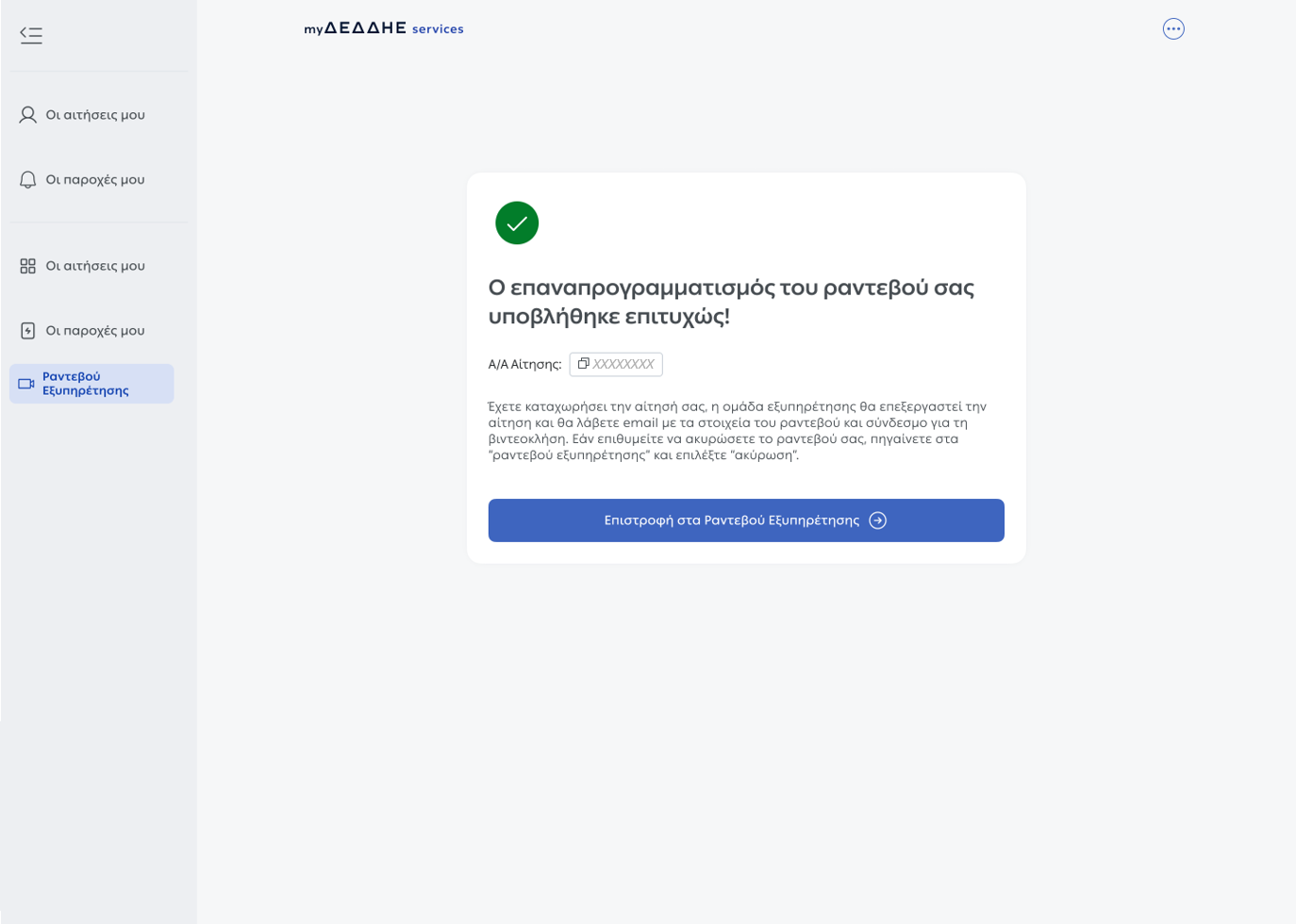
- Confirm your changes to complete the rescheduling process.
 |
The remaining appointment details, including the participant information, request type, description you entered and application reference number, cannot be changed and will remain the same.
Once your appointment has been rescheduled, you will receive the relevant confirmation emails.
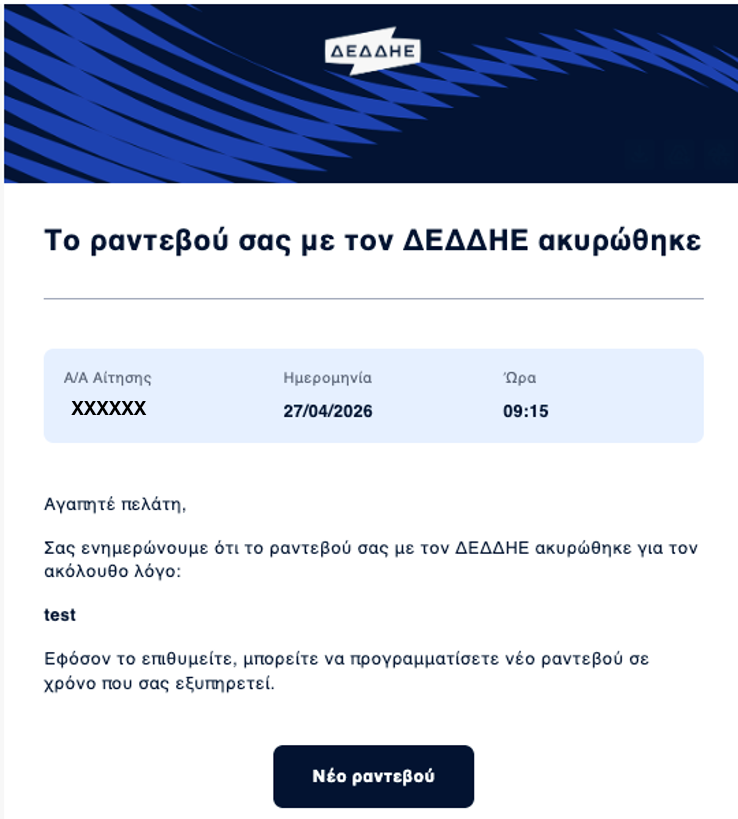
You can cancel your scheduled appointment at any time.
1. Go to “My Appointments” and select the “Current” tab.
2. Select the appointment you wish to cancel and click “Cancel”.
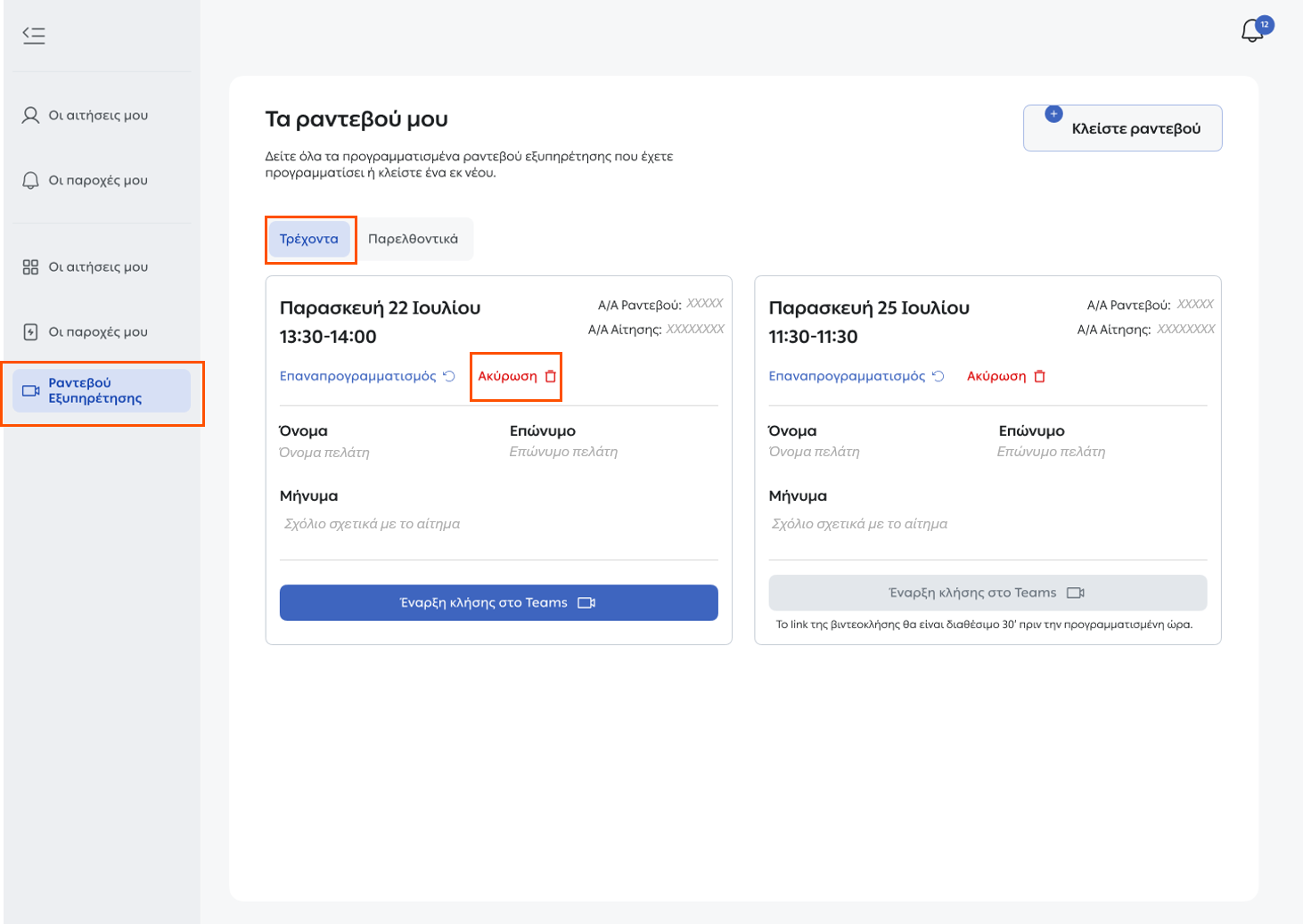 |
3. The appointment will be canceled, moved to the “Previous” tab, and you will receive a confirmation email confirming the cancellation.
 |
If your video call is unexpectedly interrupted:
- Check that your internet connection is working properly.
- If the audio and/or video connection with the customer service representative is lost, you will receive instructions via the Microsoft Teams chat, if any action is required on your part.
- Try rejoining the video call using another device.
The “Join Video Call” button included in the reminder email sent one hour before your appointment remains active for 30 minutes.
If you are ultimately unable to reconnect, you will need to book a new appointment through myΔΕΔΔΗΕ services.
If you do not join the video call within 10 minutes of the scheduled appointment time, your appointment will be cancelled.
The video call is conducted via Microsoft Teams. You can join either:
- using the Microsoft Teams app (smartphone or tablet); or
- through your web browser, without creating a Microsoft Teams account.
To participate in a video call, you will need:
- A stable internet connection
- A device (desktop computer, laptop, tablet or smartphone)
- A camera (built-in or external, e.g. a webcam)
- A microphone
You can view your scheduled appointments by selecting “Customer Support Appointments” and then the “Current” tab.
You may have up to 10 active appointments within any 30-day period.
 |
Each appointment relates to one request only and is linked to a specific Application Reference Number.
If you require assistance with more than one request, you will need to book a separate appointment for each one.
You may have up to 10 active appointments within any 30-day period.
If required, the customer service representative will guide you through the process of uploading any supporting documents that may be needed.
- If you joined the appointment using the Microsoft Teams App (smartphone or tablet), you will be redirected to a Video Call Completed Successfully page.
- If you joined through a web browser, you will be redirected to the “My Appointments” page by selecting the relevant option displayed on screen.
Your appointment will automatically be moved to the “Previous” tab.
You can check its status at any time on the “My Appointments” page.
You will also receive an email confirming that the video call has been completed.